Check total spend
See how much money went to Blinkit across the selected period instead of reading individual orders one by one.
If your goal is to understand how much you have spent on Blinkit, Shoplytics turns your order history into a simple dashboard. Read total spend, order count, basket size, and repeat grocery patterns without leaving the browser.
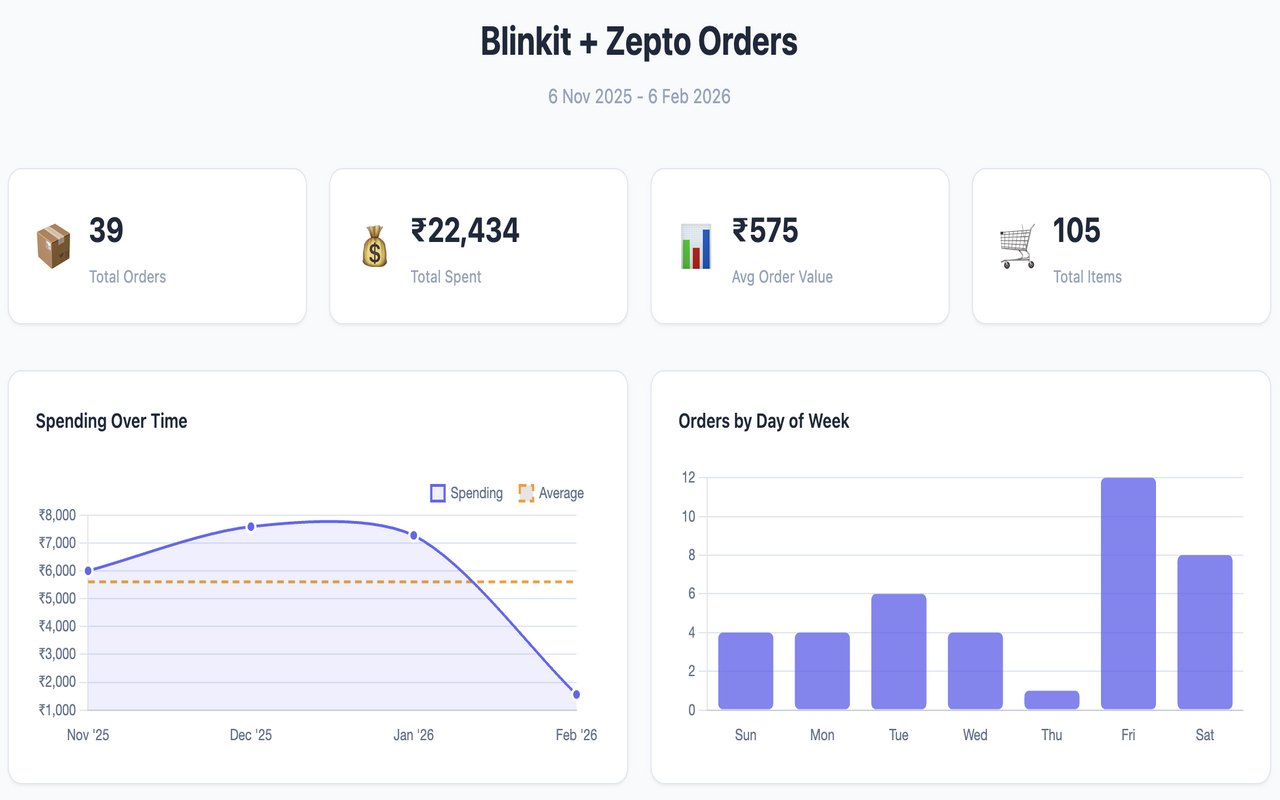
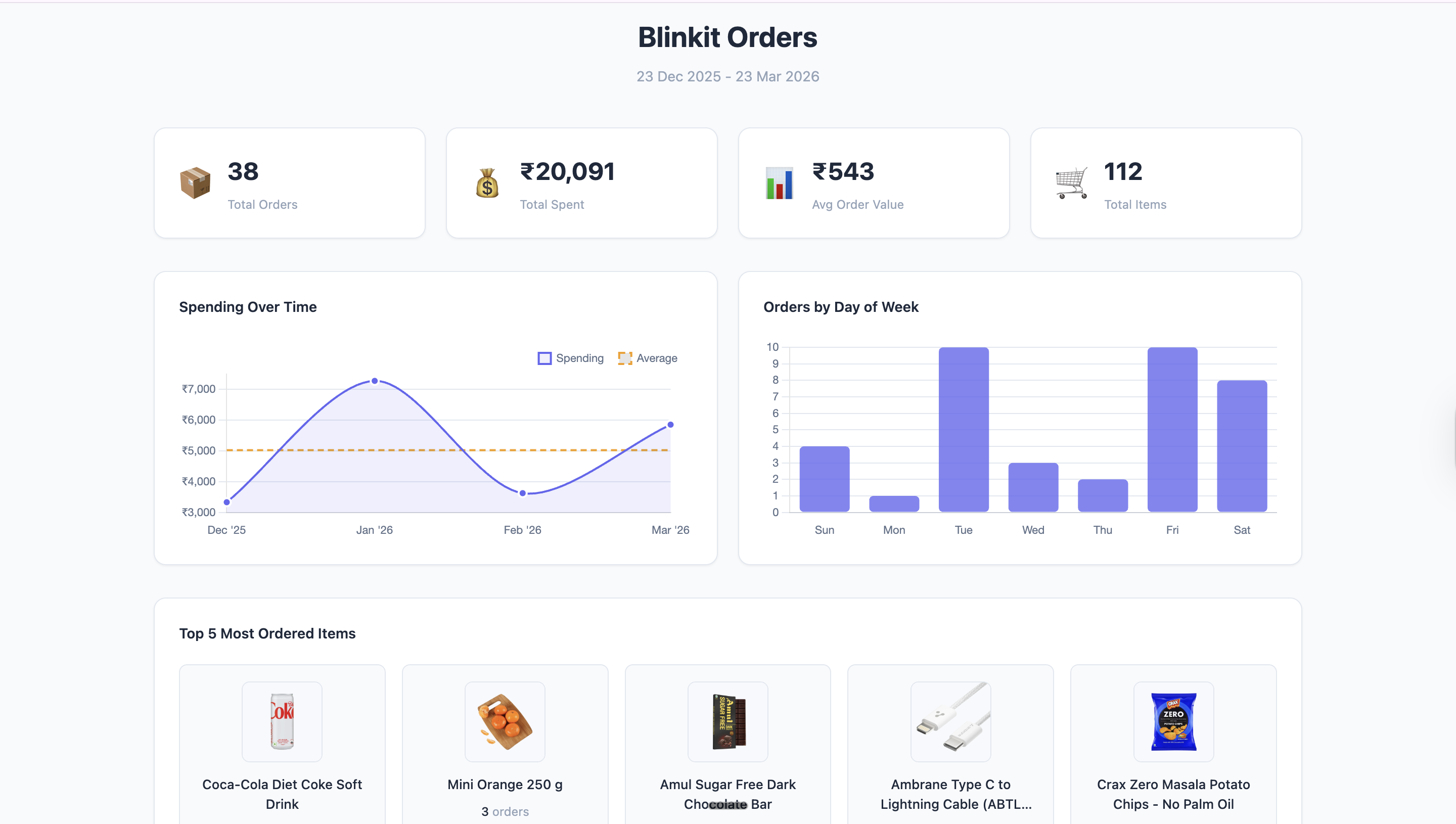
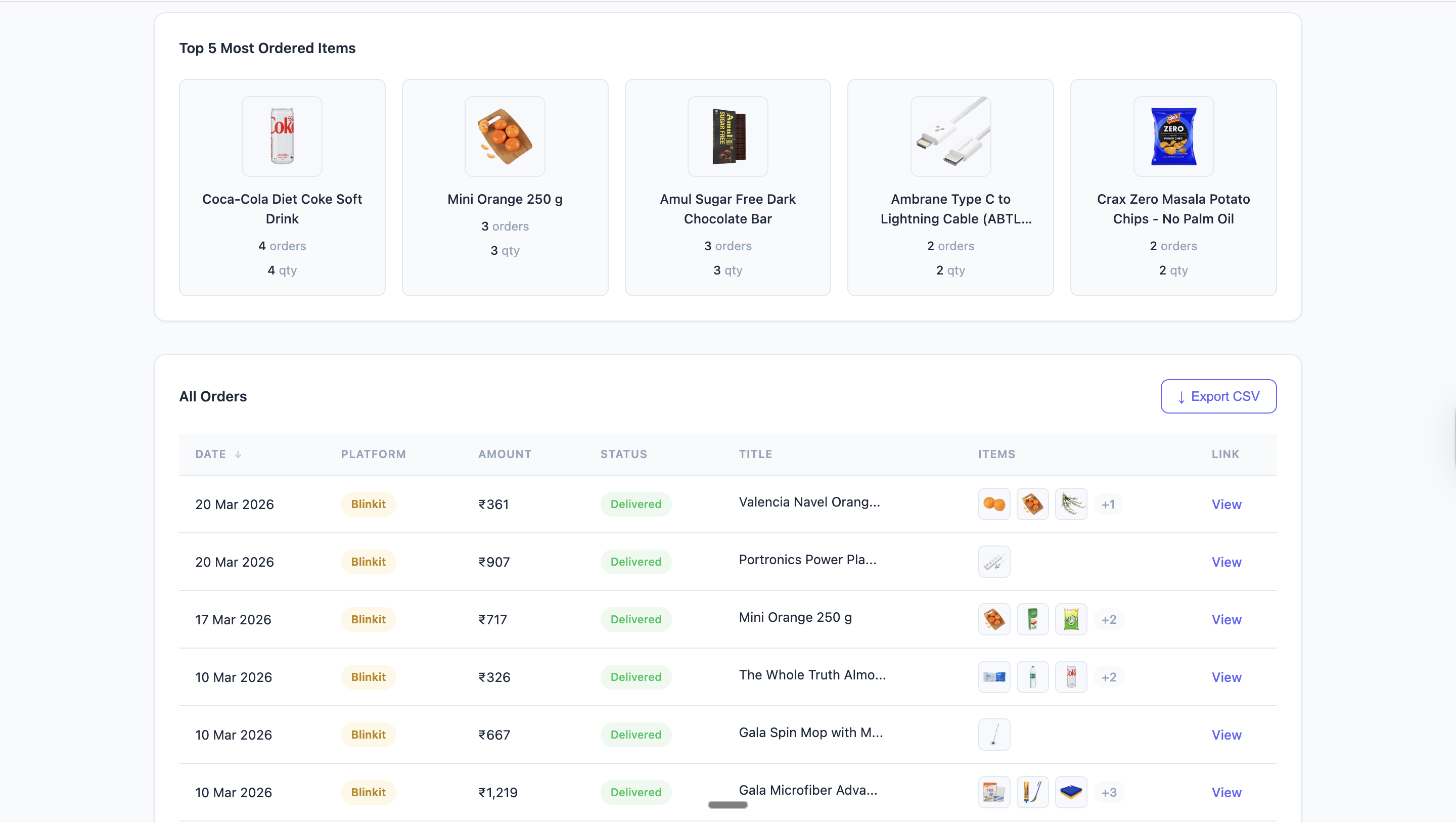
See how much money went to Blinkit across the selected period instead of reading individual orders one by one.
Read order frequency, recurring top-ups, and short-cycle purchase behavior after fetching Blinkit orders.
If your goal is specifically to answer “how do I check total money spent on Blinkit?”, use the dedicated how-to guide.
Read the Blinkit guide →Open Shoplytics, select Blinkit, choose a date range, and generate a report. The dashboard then shows total spend, order count, and related patterns in one place.
Yes. The Blinkit view is built to make recurring order patterns, monthly totals, and cumulative spend easier to read.
No. The current product model is local-first, with no external servers or cloud storage used for shopping data.